Have you ever needed to edit a printed report, contract scan, or document image, only to realize you had to retype the entire text line by line into Microsoft Word? Plain OCR tools only extract unstructured text blocks—leaving you to manually recreate bold headings, bullet points, paragraph spacing, and tables from scratch.
Our Image to Word converter solves this problem by transforming scanned page images and screenshots into real, fully formatted Microsoft Word (.docx) documents. Instead of plain text snippets, you get structured Word headings, bulleted lists, editable paragraphs, and native tables ready for instant editing.
Image to Word vs. Image to Markdown
Image to Word and Image to Markdown use the same server-side document recognition workflow to recover headings, paragraphs, lists, tables, formulas, and pictures. They work almost identically; the main difference is the output format: Word exports a .docx file, while Markdown exports a .md file. Choose the format you need for your next step.
Both tools upload the image for recognition, then handle editing and export in your browser. Neither guarantees an exact reproduction of the original page layout.
Step 1: Prepare Your Document Image
For the best structural recognition results:
- Scan or photograph clearly: Ensure text lines are straight and well-lit without heavy shadows, dark thumb marks, or background clutter.
- Crop page margins: Trim away empty outer desk borders while preserving complete headers and footers.
- Use high resolution: Ensure small text characters (like footnote numbers and subscripts) remain sharp when zoomed in.
Note on multi-column pages: Standard reports, forms, and business letters convert seamlessly. For dense magazine pages with overlapping floating text boxes, converting one section at a time yields cleaner results.
Step 2: Upload and Run AI Structural Recognition
- Open Image to Word in your web browser.
- Upload your document image (PNG, JPG, or WebP).
- Our server-side vision AI model analyzes the visual document hierarchy:
- Paragraph blocks become standard body text.
- Large bold titles become semantic
Heading 1andHeading 2Word styles. - Bullet points and numbered items become Word list objects.
- Grid lines become native Microsoft Word tables.
- Detected pictures are cropped from the source image in your browser and embedded in the Word document as images.
- Recognized formulas become native Word equations that you can edit in Microsoft Word after downloading the DOCX.
Step 3: Review and Edit in Your Browser
Before generating your .docx file, our tool provides an interactive browser editor showing the recognized document hierarchy:
- Spot-Check Headings: Verify that main section titles are tagged correctly as headings.
- Inspect Tables: Ensure table rows and columns line up correctly. For complex multi-header tables, refer to our guide on converting table images to Excel or Markdown.
- Verify Identifiers & Math: Check dates, currency symbols, and formula notations.
- Review Pictures: Check that detected picture crops include the intended content. They remain images in Word; their internal text and shapes are not converted into editable objects.
For formulas, check fractions, subscripts, superscripts, and symbols against the original image. Supported formulas are exported as editable Word equations, including inline and display math. If a formula cannot be converted, correct its LaTeX in the structured source and retry the download.
Making minor corrections in the browser review window ensures your final downloaded Word file more accurate.
Step 4: Generate and Download Your Native DOCX File
Once your review looks great, click Download Word Document.
Our converter uses browser-side document assembly libraries to compile your structured text into a clean, standard .docx package entirely in your browser. You can open, edit, track changes, and save the file in Microsoft Word, Google Docs, Apple Pages, LibreOffice, or ONLYOFFICE.
Handling Multi-Page Documents Efficiently
When converting multi-page reports or long manuscripts:
- Name Image Files Sequentially: Use clear filenames like
report-page-01.pngandreport-page-02.pngto keep your project organized. - Process Pages Individually: Convert and download each page as a
.docxfile, then merge them into your master Word document. This prevents accidental page resets from losing completed work. - Check Boundary Flow: When pasting pages together in Word, verify paragraph continuations across page breaks to ensure list numbering continues smoothly.
By using Image to Word, you convert static scanned documents into fully editable Word files in seconds—saving hours of manual retyping and formatting.
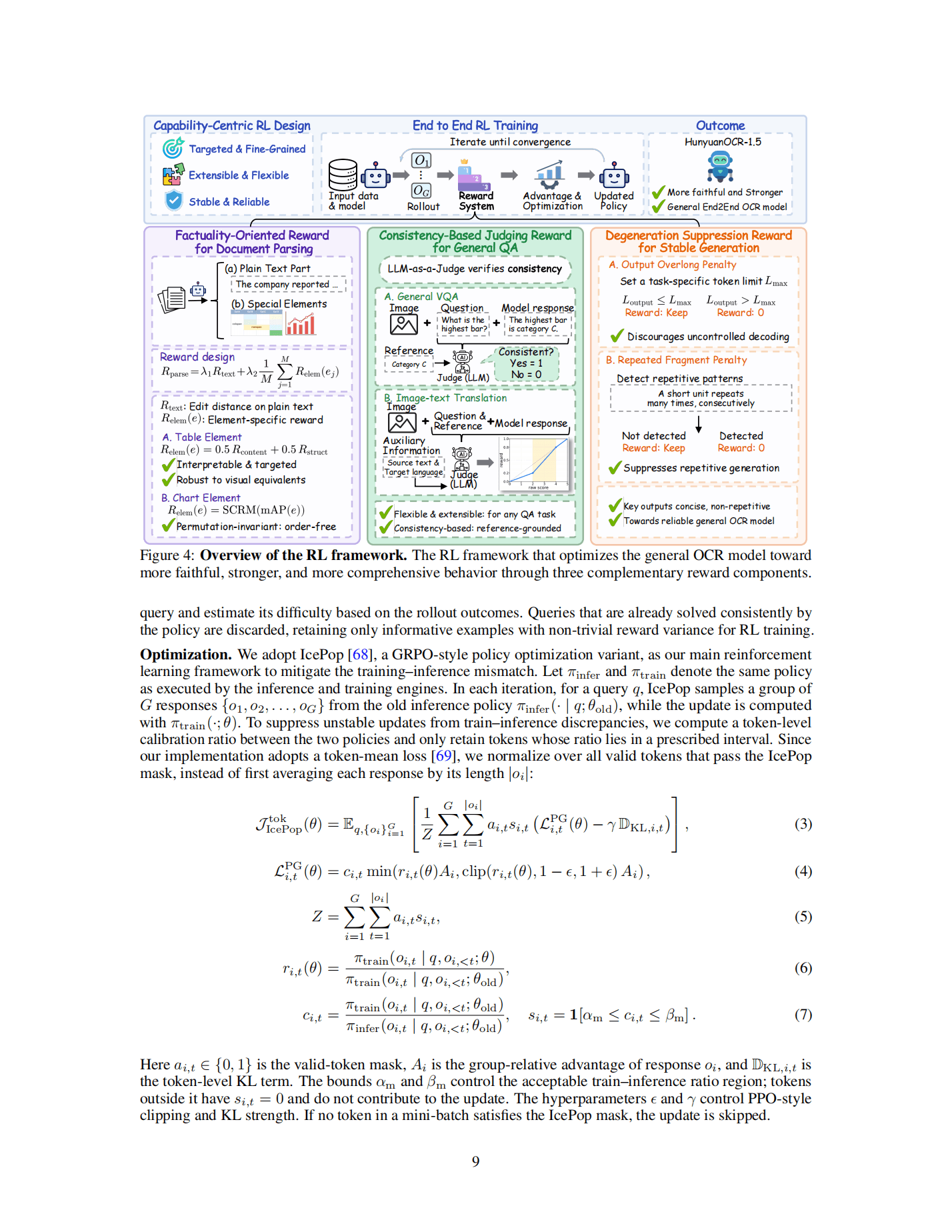
Example: Convert an Image with a Picture and Formula to Word
The source image below contains both a picture and a mathematical formula.
Word Conversion Result
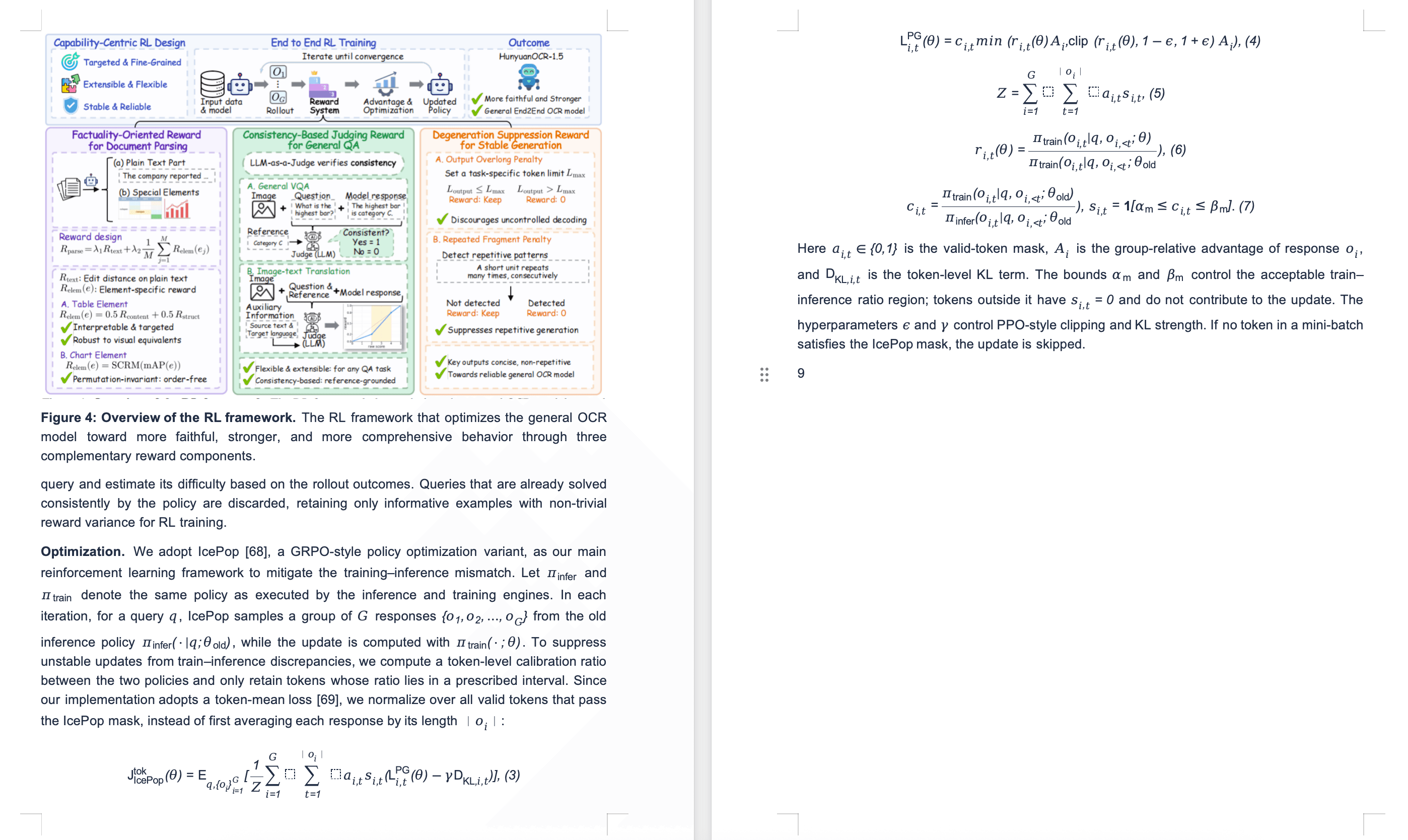
The converted Word document preserves the picture and turns the formula into an editable equation, so you can revise it directly in Word. The converted equation differs slightly from the formula in the source image and needs manual corrections in Word.