You find a flowchart in someone else's blog post, documentation, or slide deck and want to adapt it for your own project. But all you have is an image—there is no editable source file or Mermaid code to copy. To change a few labels or add a branch, you would first need to recreate the diagram.
Converting that image into Mermaid.js code gives you an editable starting point. You can reuse the diagram's structure, change the parts you need, and keep the result as text alongside your documentation. Mermaid may arrange the boxes and arrows differently, so expect to recreate the logic rather than an exact visual copy.
Our AI-powered Image to Mermaid tool analyzes the screenshot and generates Mermaid code with a live preview. You can then check the labels and connections against the original before adapting it. Here is how to use it step by step.
Why Convert Flowcharts to Mermaid.js?
Mermaid.js represents visual diagrams using intuitive plain-text syntax. For example, a simple decision tree looks like this:
flowchart TD
  A[Receive Request] --> B{Is Token Valid?}
  B -- Yes --> C[Process Data]
  B -- No --> D[Return 401 Unauthorized]
Using Mermaid text diagrams offers major developer advantages:
- Version Control Ready: Store diagrams directly inside your Git repository alongside project code.
- Instant Editing: Change a node label or add a new branch by editing a single text line—no design software required.
- Universal Rendering: Native support across GitHub, GitLab, Notion, Obsidian, and documentation generators.
Step 1: Capture a High-Contrast Screenshot
To achieve high recognition accuracy for nodes and connecting arrows:
- Include all shapes and labels: Ensure no node titles, decision branch labels (
Yes/No), or arrowheads are clipped at the image edges. - Ensure readable contrast: Clear dark lines on a white or light background yield the best OCR accuracy.
- Crop out unrelated page elements: Exclude browser toolbars, floating chat buttons, or unrelated article copy from your crop frame.
Pro tip: If your diagram is exceptionally large or complex, crop it into logical sub-sections and combine the resulting Mermaid code blocks in your editor.
Step 2: Upload and Convert Your Image
- Open Image to Mermaid in your web browser.
- Drag and drop your PNG, JPG, or WebP flowchart screenshot into the drop zone.
- Our server-side vision AI model analyzes the image, identifies visual shapes (rectangles, diamonds, rounded boxes), detects connector directions, and transcribes text labels.
- Within seconds, the tool generates editable Mermaid code along with a live interactive diagram preview.
Note on Chart Types: If you upload a statistical data graph (such as a bar or pie chart) instead of a structural flowchart, our vision engine automatically provides a structured Markdown data breakdown instead of forcing inaccurate node connections.
Step 3: Spot-Check Your Mermaid Syntax and Layout
Once your Mermaid code is generated, spend 60 seconds comparing the live preview against your original source image:
1. Verify Decision Branch Labels
Check diamond decision nodes (e.g., {Is Valid?}). Make sure Yes and No branch labels are attached to the correct outgoing arrows rather than swapped.
2. Check Arrowhead Directions
Ensure directional connectors point in the correct flow direction. In Mermaid syntax:
A --> Bcreates a standard directed arrow from A to B.A --- Bcreates an open un-directed line.A -.-> Bcreates a dotted line.
3. Verify Unique Node Identifiers
Ensure each distinct box has a unique node ID (like A, B, C). If two separate nodes share identical text labels (e.g., two boxes labeled Error), assign them distinct IDs like E1[Error] and E2[Error] so Mermaid does not merge them into a single node.
4. Adjust Layout Direction
If your diagram reads left-to-right instead of top-to-bottom, change the top line from flowchart TD (Top-Down) to flowchart LR (Left-Right) to match your visual layout preference.
Step 4: Export and Publish
When your diagram preview looks perfect:
- Copy Mermaid Code: Click Copy Code to paste the plain-text syntax directly into your GitHub
.mdfiles, Notion pages, or Markdown documents.
Quick Syntax Reference Table
| Diagram Element | Source Image Visual | Mermaid.js Syntax |
|---|---|---|
| Rectangle Box | Process step | A[Process Step] |
| Rounded Box | Start / End node | A(Start Process) |
| Diamond | Decision point | B{Condition?} |
| Labeled Arrow | Path with label | B -- Yes --> C[Target] |
| Dotted Line | Optional link | A -.-> B |
By converting static flowchart images into editable Mermaid code, you save hours of manual redrawing and create documentation that stays maintainable forever.
Example Conversion
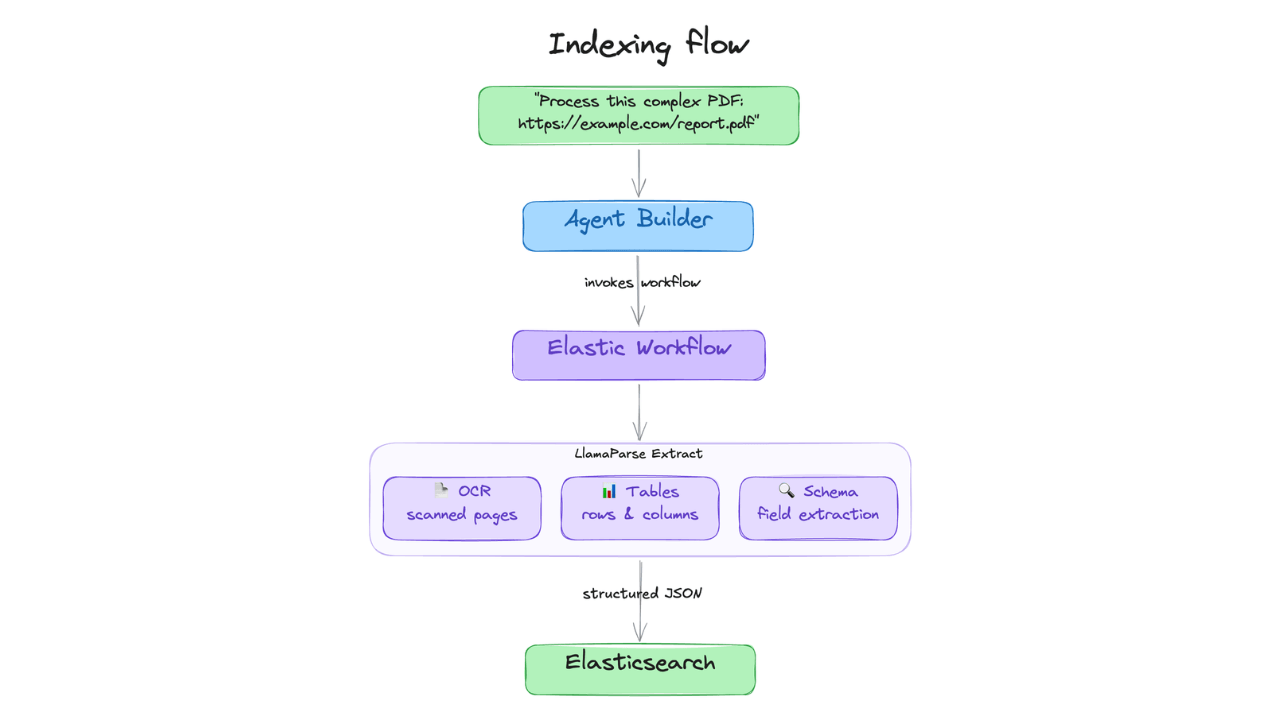
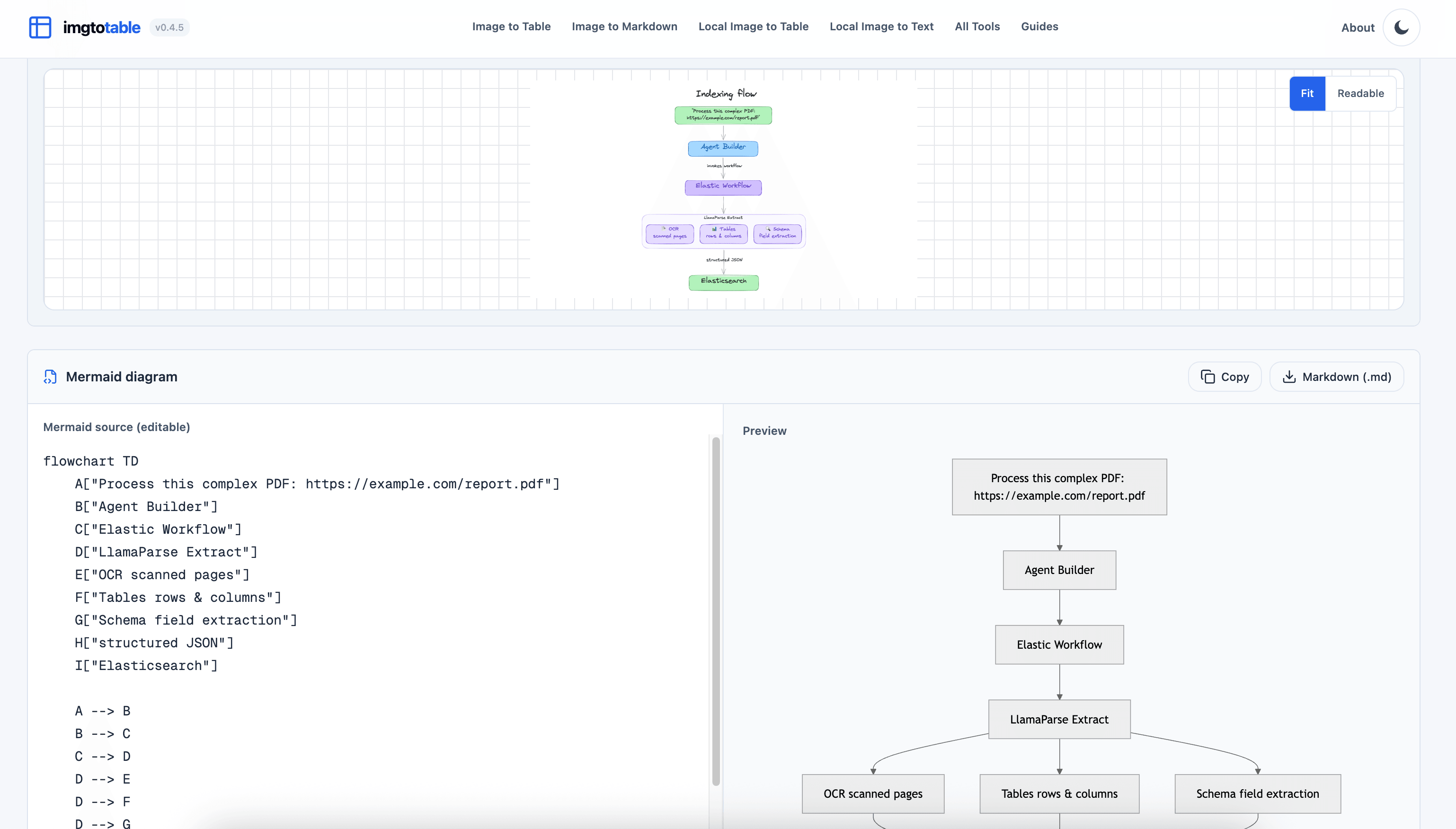
The images below show one example of converting an existing diagram into Mermaid code. The source diagram comes from this Elastic article about PDF extraction.
Original diagram:
Mermaid conversion result:
Limitations
The tool extracts labels and connections but does not preserve the original colors, styles, or exact layout. Check the result against the source image and correct any recognition errors.